
Reports and indicators
What you will learn
Turn indicators into verifiable production questions.
Worked example
If at-risk orders rise, open related records and distinguish material, capacity and external-return delays before acting.
From data to result
- 1Period
- 2Indicator
- 3Detail
- 4Decision
Reports and widgets summarise real production, capacity, material, maintenance and quality data. Apply the period and filters first so comparable values are used. A dash means there is not enough evidence yet; it is never replaced with invented estimates. Check the detail and refresh date when interpreting an indicator.
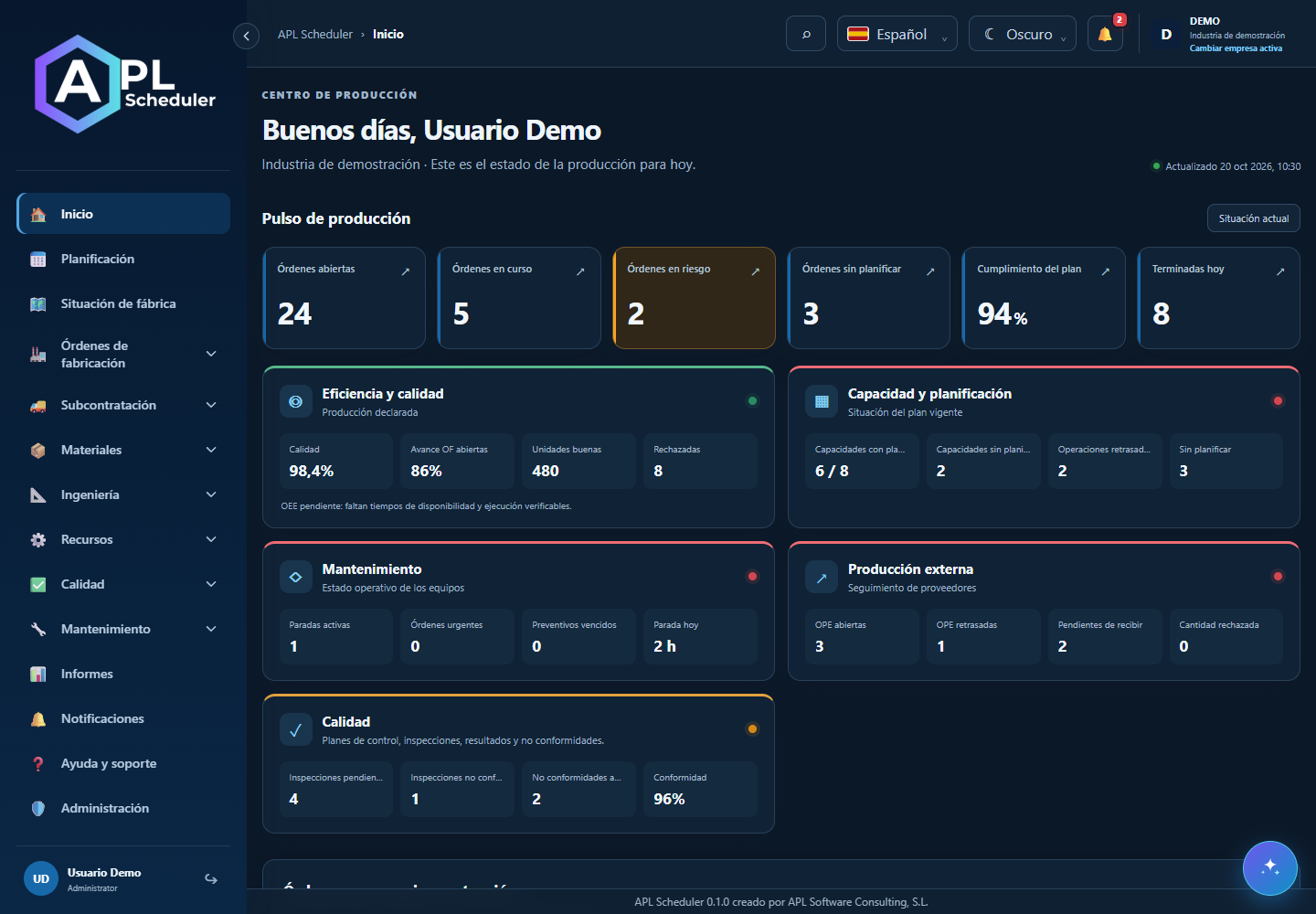
- 1Start with the question: load, delays, productivity, quality or maintenance. Choose area, period, company and filters before comparing.
- 2Check refresh time and metric definition. Distinguish quantities, effective work, elapsed time and compliance. Do not add percentages or compare unequal periods without context.
- 3Open available detail and related records. A dash means insufficient data, not necessarily zero. Permissions limit visible figures.
- 4Use the screen’s available export options and check recipients and data before sharing.
Visual walkthrough
 Download video
- 0:00 · Find open orders on Home.
- 0:06 · Click the indicator to open its related list.
- 0:12 · Open an order and check details: an indicator summarises, it does not explain.
Before you finish
Compare the same company, period, unit and refresh time. Percentages need denominators and cannot simply be added.
Common questions
An option is missing or I cannot edit
Check active company, licence, permissions and integration-managed fields. Do not use a direct URL to bypass restrictions.
I cannot find records
Clear filters and check page, dates and company. There may be no accessible data; do not create duplicates to test.
I saved but cannot see the expected effect
Reopen the record and verify. Saving data does not publish a required simulation. Check whether the first write succeeded before repeating it.