
Getting started with APL Scheduler
What you will learn
Navigate the app and work in the correct company.
Worked example
At shift start, check the company, review Home, open an order from its list and return without editing.
From data to result
- 1Sign in
- 2Company
- 3Home
- 4Module
Start safely
APL Scheduler always works with a configuration, an active company and your user permissions.
- Check the active company in the top-right corner.
- Use the side menu to open modules and search to find records.
- Change language and theme in the header; preferences are saved.
- Open several tabs in the same browser without using extra licences.
Tip: review notifications at the start of the day and never share your session.
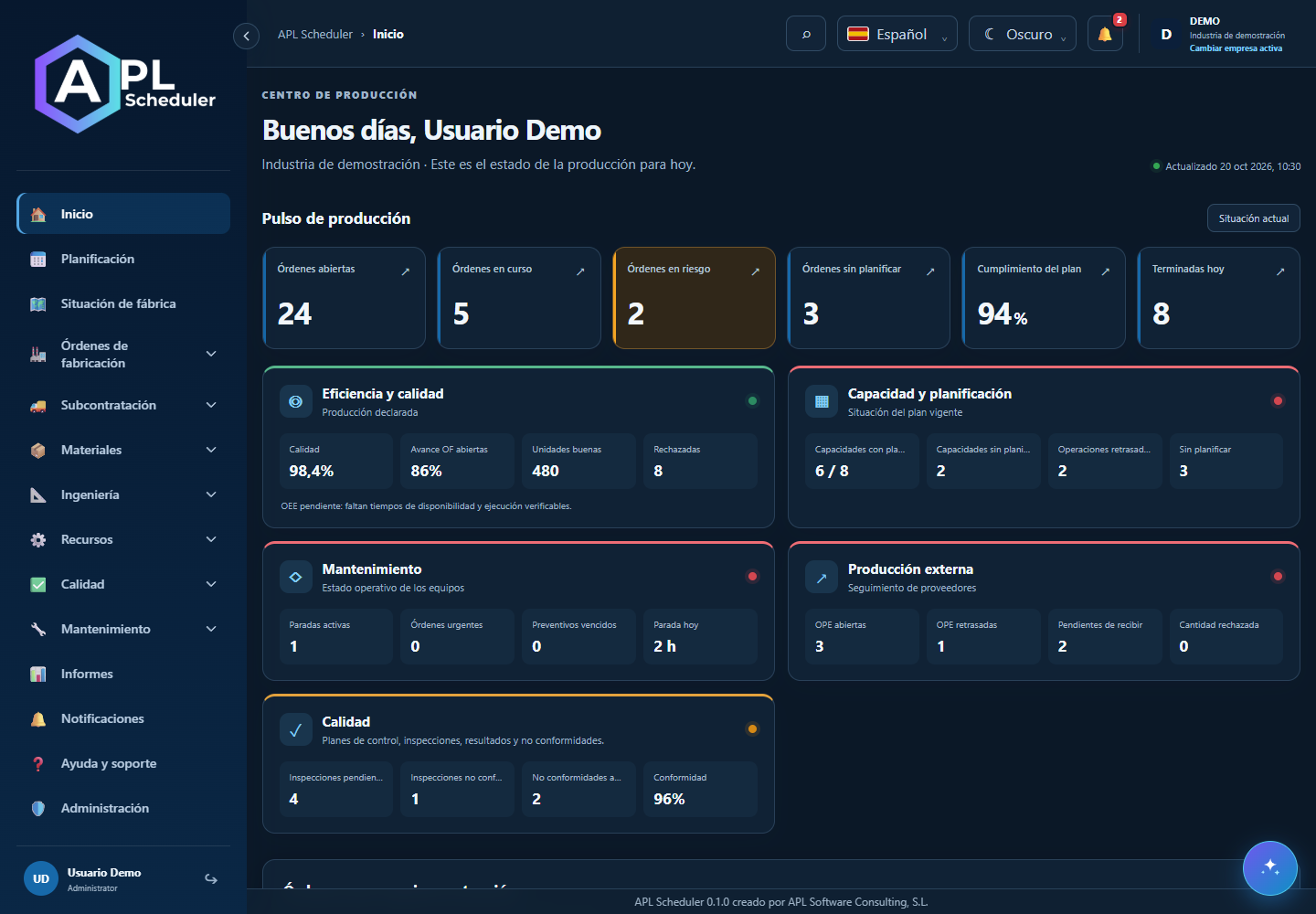
- 1Sign in with the configuration, username and password supplied by your administrator. Select the company and check its name in the header before viewing or changing records.
- 2On Home, review at-risk orders, capacity and alerts. Use the sidebar to open modules and global search to find authorised records.
- 3Combine search, status and pagination in lists. Open a record through its code. Save or cancel from the header; leaving a page does not save your edits.
- 4Choose language and theme in the header. Add and verify your email in your profile for alerts. Multiple tabs in one browser are supported; a different browser or device may replace your session.
Visual walkthrough
 Download video
- 0:00 · Check the company before working.
- 0:06 · Open Planning from the sidebar.
- 0:12 · Find machines and operations in their rows.
Before you finish
The company name matches your work and you can find the same order using its code or filters.
Common questions
An option is missing or I cannot edit
Check active company, licence, permissions and integration-managed fields. Do not use a direct URL to bypass restrictions.
I cannot find records
Clear filters and check page, dates and company. There may be no accessible data; do not create duplicates to test.
I saved but cannot see the expected effect
Reopen the record and verify. Saving data does not publish a required simulation. Check whether the first write succeeded before repeating it.