
Planning and simulations
What you will learn
Prepare and compare a feasible schedule before publishing.
Worked example
Move a pending phase to an alternative laser and compare both rows and later phases before applying.
From data to result
- 1Published plan
- 2Simulation
- 3Review
- 4Apply
The planner calculates capacity, calendars, materials, precedence, breakdowns and external production. Replan all creates a simulation: review the summary, colours and reason for every change before applying. Started, completed and fixed operations are protected; a stoppage may split an operation and reschedule only its remaining time.
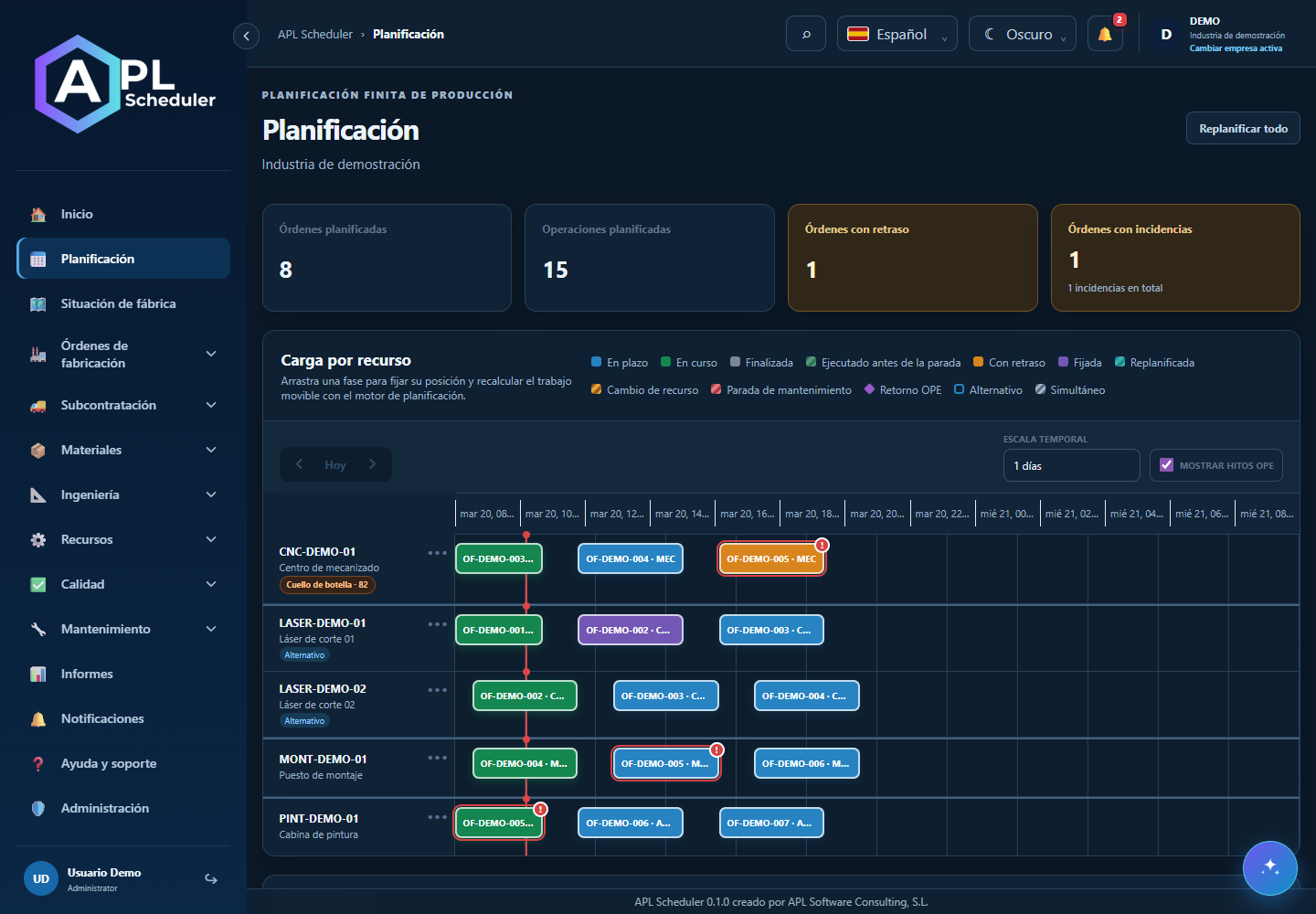
Drag, review and apply
Learn the workflow without changing the published plan yet.
 Download video
Before you start
Check company, resource and date. Editing permission is required. Started, completed or locked operations cannot be dragged.
Drag an operation
Hold the bar and move it to the desired resource and time. The marker shows the destination in 15-minute intervals; check it before dropping.
Review the simulation
On drop, the engine validates the move and calculates a proposal. The moved operation acts as an anchor; others follow calendars, capacity, materials and dependencies. Not every gap is usable.
Compare before publishing
Click changed operations to compare original and proposed start, finish, resource and reason. Check issues, subsequent phases and both resources.
Apply or discard
Apply planning publishes the proposal. Discard keeps the previous plan. If dragging is rejected, read the diagnosis: that attempt must not publish changes.
Check the result
After applying, review the plan and calculate again without changing data: no new differences should appear while planning conditions remain unchanged.
- 0:00 · Identify the pending phase to move.
- 0:06 · Drag it to the alternative laser: follow the cursor and target guide.
- 0:12 · Check the indicated time. Cancel before dropping: no changes are published.
- 1Open Planning and inspect the published horizon, resources and issues. Each bar is a phase and each row identifies its assigned capacity. Use the timescale and arrows to navigate.
- 2Replan all prepares a simulation. Compare affected orders, dates, resource changes, additions, removals and issues. Nothing is published until Apply planning; discard an unwanted proposal.
- 3Drag a phase to its desired capacity and time for a manual decision. The engine reserves that anchor and recalculates movable work. A gap strictly below 15 minutes may close if calendars and dependencies allow; mandatory waits remain.
- 4Select a changed phase to compare original and proposed dates and capacity and its explanation. Fixed, completed and protected work cannot move freely. A started operation affected by a stoppage may split into executed and remaining work.
- 5Apply only after reviewing the full proposal. If work cannot fit, check materials, alternatives, shifts, stoppages, dependencies and anchors. Repeating without relevant changes should not create new persistable differences.
Before you finish
The chosen phase keeps its anchor, finite capacity has no new overlaps and each displacement is explained.
Common questions
An option is missing or I cannot edit
Check active company, licence, permissions and integration-managed fields. Do not use a direct URL to bypass restrictions.
I cannot find records
Clear filters and check page, dates and company. There may be no accessible data; do not create duplicates to test.
I saved but cannot see the expected effect
Reopen the record and verify. Saving data does not publish a required simulation. Check whether the first write succeeded before repeating it.