
Factory view
What you will learn
See the plant now and maintain its visual representation.
Worked example
Create a layout from Production structure, place a machine and manual station, assign resources and inspect current and next operations.
From data to result
- 1Structure
- 2Layout
- 3Assignment
- 4Current state
Each production structure can have a visual layout with elements linked to work centres or resources. The view shows the current situation using dates, shifts, simultaneous operations and active stoppages, with silent refresh. Select an active element to see current and next operations or maintenance. The designer is available on desktop and tablet, not mobile.
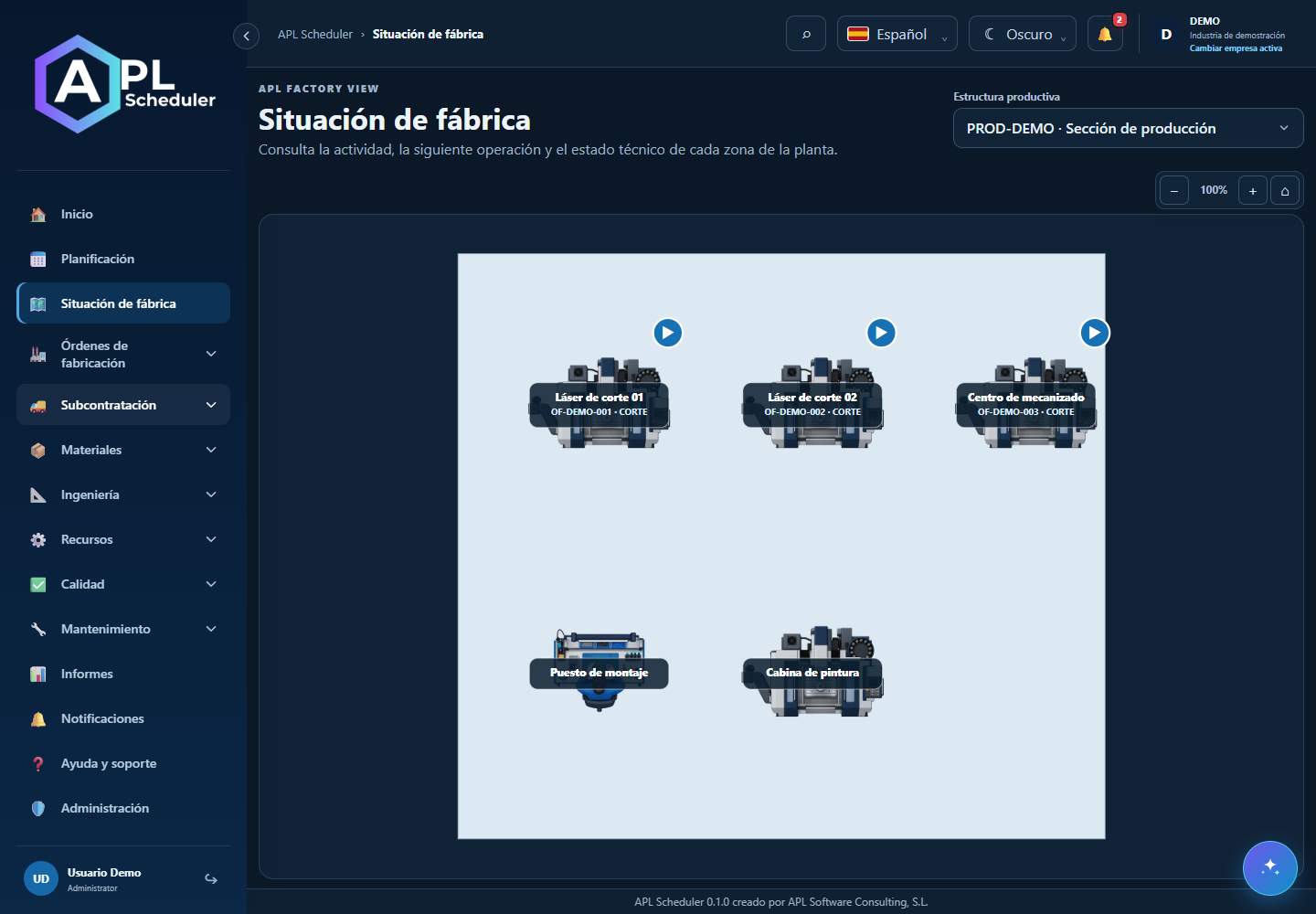
- 1APL Factory View and module permission are required. Open Configure layout from Production structure. Layouts are created explicitly, not automatically for new companies.
- 2Edit the outline visually, add edge vertices and place production elements. Move, resize and rotate using handles; assign capacity in element settings. Walls are separators without assigned capacity.
- 3Save and open Factory View. Choose the structure and use zoom/pan. Current status considers dates and working hours; a long bar does not mean production outside a shift.
- 4Select an active element for current/next work and stoppages. Up to three simultaneous operations and the total count appear on the map. Future maintenance alone does not mark a current breakdown.
Visual walkthrough
 Download video
- 0:00 · Locate the resource on the map.
- 0:06 · Use the zoom-in button.
- 0:12 · Click the machine to inspect its current operation and dates.
Before you finish
Names match resources in that structure. Dates, shifts and downtime explain status; empty popup sections are omitted.
Common questions
An option is missing or I cannot edit
Check active company, licence, permissions and integration-managed fields. Do not use a direct URL to bypass restrictions.
I cannot find records
Clear filters and check page, dates and company. There may be no accessible data; do not create duplicates to test.
I saved but cannot see the expected effect
Reopen the record and verify. Saving data does not publish a required simulation. Check whether the first write succeeded before repeating it.