
Notifications and alerts
What you will learn
Receive and review alerts through authorised channels.
Worked example
Add and verify email in Preferences, choose categories and enable push only in a browser you control.
From data to result
- 1Preferences
- 2Channel
- 3Alert
- 4Read
The bell collects functional alerts and APL announcements with date and time. Preferences let you enable available channels, including verified email and browser notifications. Mark individual alerts or all alerts as read. Global announcements may target everyone or administrators only.
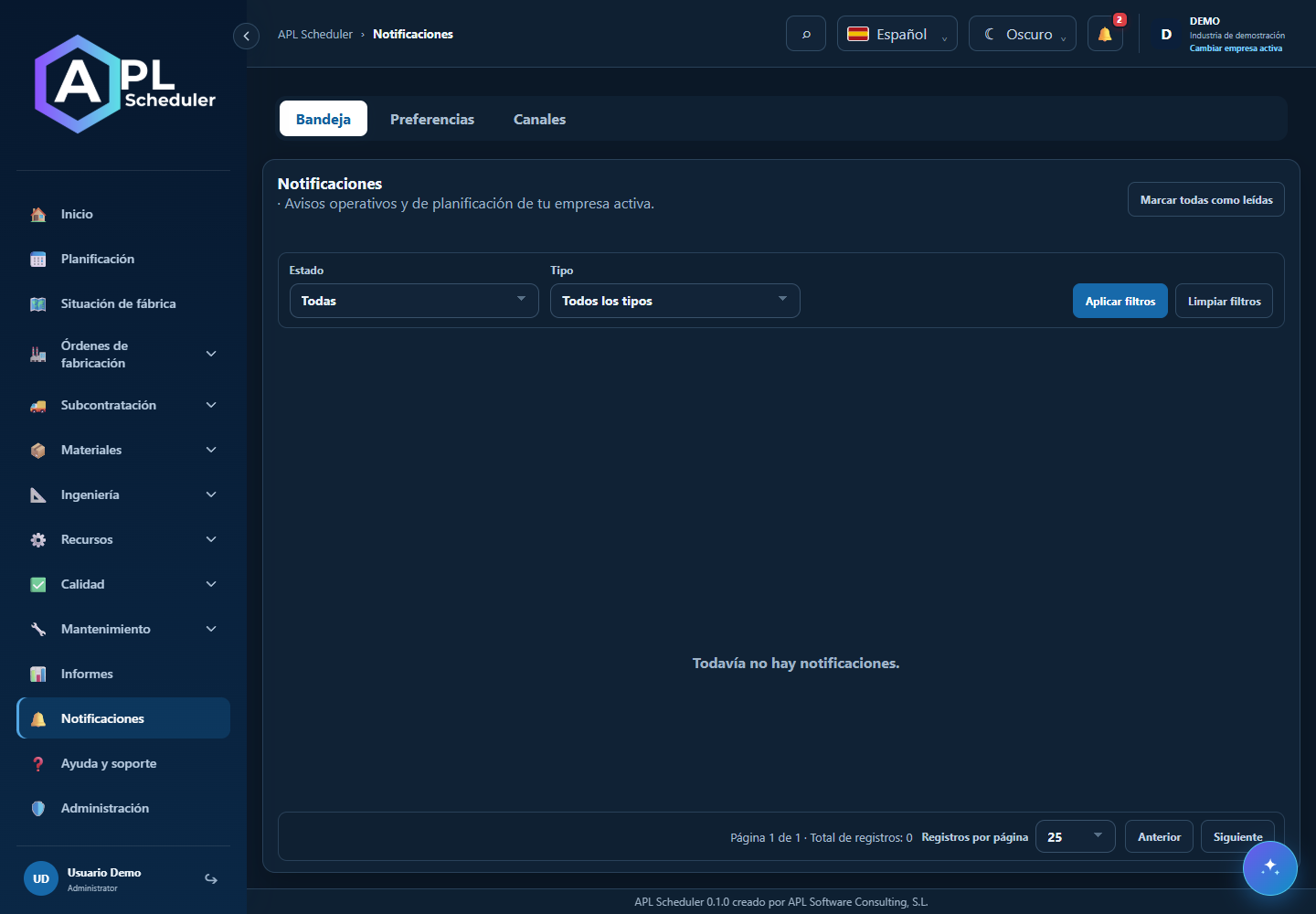
- 1Open the bell or Notifications and review dates. Follow a supplied record link rather than acting only on the summary.
- 2Mark individual or all alerts as read after review. The count is unread alerts, not necessarily unresolved errors.
- 3Choose available channels in preferences. Verify your email; for browser push, grant permission in a compatible browser and save.
- 4If alerts are missing, check preferences, browser permission and spam. Assistant usage alerts and some announcements may target administrators only.
Visual walkthrough
 Download video
- 0:00 · Find an alert and check its date.
- 0:06 · Follow its link to the related screen.
- 0:12 · Verify information there. No server records are marked or changed.
Before you finish
Email is confirmed, preferences persist when reopened and the browser has notification permission.
Common questions
An option is missing or I cannot edit
Check active company, licence, permissions and integration-managed fields. Do not use a direct URL to bypass restrictions.
I cannot find records
Clear filters and check page, dates and company. There may be no accessible data; do not create duplicates to test.
I saved but cannot see the expected effect
Reopen the record and verify. Saving data does not publish a required simulation. Check whether the first write succeeded before repeating it.